Everything your business needs to send, receive and complete documents.
Vukorix does signing, secure sharing, client uploads, reusable PDFs, completed forms and two-way document exchange, all in one straightforward platform.
Vukorix Solo is A$12.99 a month including GST for one person, and Vukorix Business is A$19.99 a month including GST for you plus 3 team members. No credit card required.

Get documents to the right person and get the completed result back.
Use Secure Share when someone needs to open a sensitive file. Use E-Sign when the document needs a signature. Electronic signatures have been recognised in Australia since the Electronic Transactions Act 1999 (Cth). There is corresponding legislation in every state and territory. Requirements still vary by document type and by state. For documents with special execution requirements, get your own advice.
Send a sensitive document without an email attachment.
Create a controlled link. That way the document does not remain as another copy in inboxes and sent folders.
- Choose the file
- Set the expiry, view limit and optional access check
- Send the controlled link

Send a PDF for signature and keep the completed record.
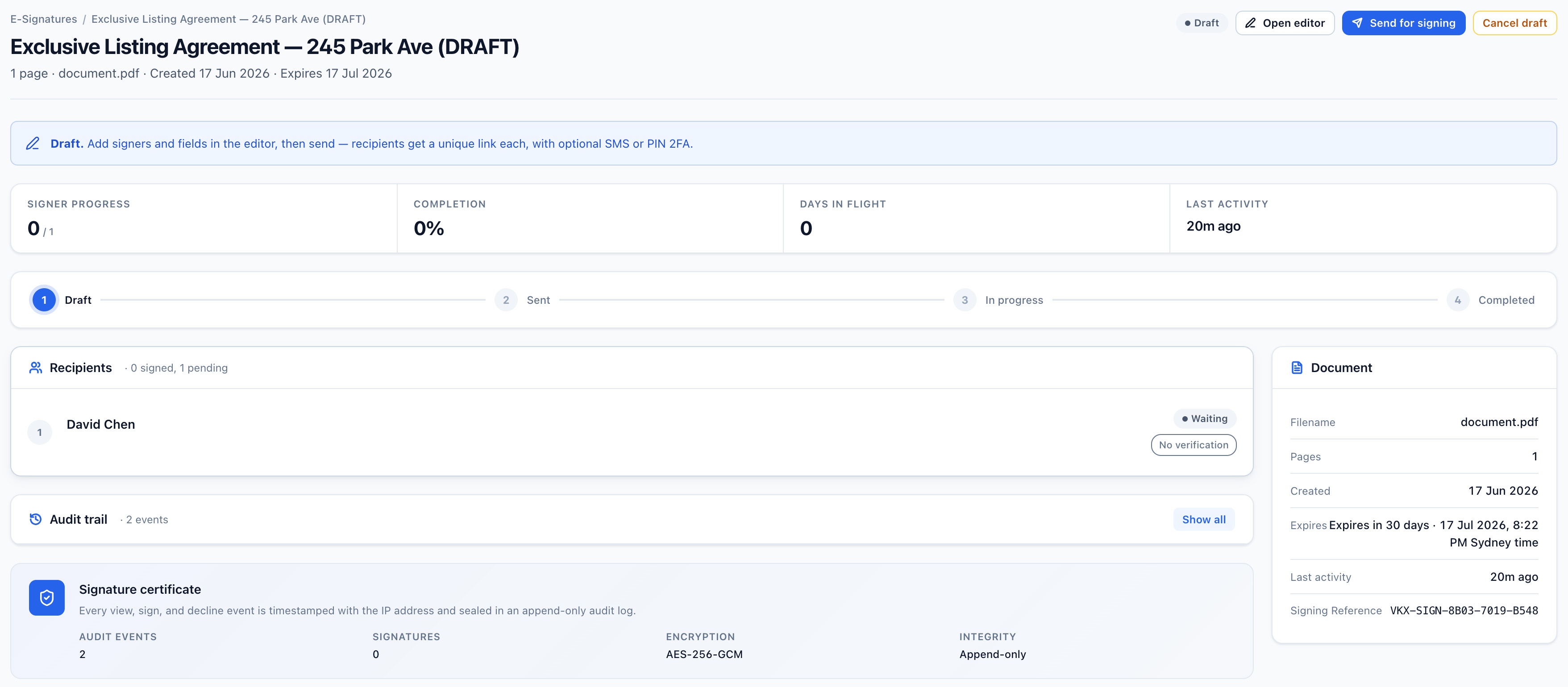
Prepare the PDF, notify the recipients and track progress until signing is complete. The audit certificate records who signed, when and how.
- Upload the PDF and place the required fields
- Notify recipients by email, or by SMS to an Australian mobile
- Download the signed PDF and audit certificate
Get the right documents from clients without chasing email threads.
Use Secure Receive when files need to come in. Use Secure Exchange when documents need to move in both directions.
Request exactly what your team needs.
Give the client one checklist and one upload link. You can then see which items have arrived and which are still missing.
- List the required and optional documents
- Send one request with notifications and reminders
- Review what has arrived and what still needs attention
Collect files and send documents back in one place.
Keep incoming client files, outgoing documents and the completion record connected to the same exchange.
- Request the files you need
- Review what arrives and send documents back
- Download the audit certificate
Client document exchange
Refinance · Whitlock & CoClient uploads
Documents sent back
Save time on documents your business uses repeatedly.
Use Document Library for approved PDF templates. Use Smart Forms when an existing PDF needs to be completed by a client.
Keep approved PDFs ready to reuse.
Save the standard PDF once and start a fresh E-Sign draft whenever the document is needed again.
- Upload the approved PDF
- Organise it in the shared library
- Start a fresh draft while keeping the original unchanged
Document Library
Search templates NewMake an existing PDF easier for a client to complete.
Add the fields the client needs, send the document through Vukorix and receive the completed PDF back.
- Start with an existing PDF
- Add the required fields
- Send it through Secure Receive or Secure Exchange
Smart Forms
Tenancy-application.pdfUseful controls that keep document work moving.

Email and SMS notifications
Let recipients know when an action is waiting. The notification options depend on the selected product.

Automatic reminders
Use reminders on supported signing and document-request tasks to reduce manual follow-up.

Clear status
See what has been sent, received, signed or still needs attention.

Optional access checks
Use a PIN, password or SMS code on supported products when another access step is required.

No client account for most tasks
Recipients usually open the link and complete the requested action without creating a Vukorix account.

Completed records
Keep signed PDFs, audit certificates, uploaded files and completed documents where the selected product provides them. You can then show later what happened and when.
Questions about using Vukorix.
Which Vukorix product should I use?
Use Secure Share to send a controlled file link, E-Sign for signatures, Secure Receive to request client documents, Secure Exchange when files need to move in both directions, Document Library for reusable PDFs, and Smart Forms for completed PDFs.
Can Vukorix notify recipients?
Supported products can send email notifications, or SMS notifications to Australian mobile numbers, to let recipients know an action is waiting.
Can Vukorix send automatic reminders?
Automatic reminders are available for supported signing and document-request tasks to help reduce manual follow-up.
Do clients need a Vukorix account?
For most recipient tasks, no. Clients open the link to sign, upload, complete or access the requested document.
What records do I receive?
The result depends on the product. It may include a signed PDF, audit certificate, uploaded files, completed PDF, secure share or Secure Exchange completion record. Where a signing record is produced, it is the evidence you would rely on to show who signed, when and how.
Read more: Document workflow software, how the products work together as one workflow.
Use the right tool for the document job in front of you.
Try every Vukorix product for 7 days. No credit card required.